Forcing Single-Sided Printing with AppKit

I've been hand-writing GOTV postcards for two organizations1, and I decided to write a quick app to print address labels for one of them. (The other requires hand-written addresses.) It's been a long time since I did any coding, and this seemed like a nice low-stakes project to start the Cocoa wheels turning in my head again2. Worst case, I could always throw the code away and use mail-merge in Word or Pages like a normal person.

I soon had a fully functional app — not in a state to share publicly, but good enough for personal use.

There was one thing that bugged me though.

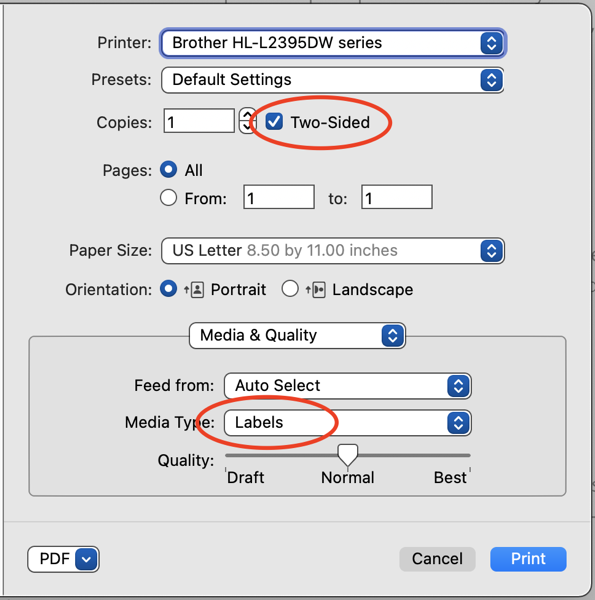
If your printer supports double-sided printing, the macOS print panel always defaults to double-sided, no matter what option you chose the last time you printed. This is apparently on purpose and has been the case for a while now.

I found that as a user you can change this with a few simple steps:

  1. Using sudo privileges, enable the web interface to CUPS.
  2. And I stopped reading there, because WTF.

Okay, well, I figured I'm writing the printing code in my app, so as the All-Powerful Programmer all I have to do is set the NSPrintInfo's duplex mode to kPMDuplexNone, which indicates single-sided printing. But no, AppKit blows away the value I set and forces the duplex mode to kPMDuplexNoTumble, which indicates double-sided printing.

The only workaround I could figure out was to subclass NSPrintPanel and override the method that opens the print panel in a sheet. My override sets the duplex mode immediately after the sheet is presented, replacing the double-sided setting AppKit stuck in, and doing so before the user interacts with the print panel. You can see my code on GitHub.

I haven't looked at how (or whether) commercial label-printing programs deal with this issue. All I know is how I dealt with it. [EDIT: It occurred to me that one way would be to not use the system print panel at all, but rather to implement one's own print panel, like Google Chrome does. Doable, but not worth it for me, and IMO it's not great to have to resort to re-implementing standard system UI just to work around a quirk.]

Unfortunately this is not a generally useful workaround, because the "Two-Sided" checkbox in the print panel is still checked, which means it does not accurately reflect the state of the NSPrintInfo. My app hides the checkbox, but this means it also hides the number-of-copies text field. This is okay for my purposes. I never want multiple copies, and because I'm printing labels I never want double-sided.

Right now I'm too lazy, but I should probably file a Feedback ticket:

  • I want the ability for my app to force single-sided every time instead of AppKit insisting on double-sided3. Another way of putting it is that I'd like the controls in the print panel to accurately reflect the values they correspond to in the NSPrintInfo instance I provide.
  • I want to be able to hide just the "Two-Sided" checkbox without having to hide the number-of-copies text field.
  • It might make sense for AppKit to default to single-sided printing, if not outright force it, when "Labels" is chosen as the media type.
Printer Brother HL L2395DW series


  1. Postcards to Voters and the Georgia Postcard Project. There's a third GOTV group I've joined called Vote Forward that writes letters rather than postcards. I haven't written for them yet. 

  2. This is the "quick Mac app" I referred to in my previous post

  3. In the latest Big Sur beta (20A5374i as of 2020-09-30) I think there is a change I did not see in the release notes. If I'm not mistaken, the "Two-Sided" checkbox remembers its setting between invocations of the print panel. But this doesn't help me. I need to always force single-sided. 

Quick Notes on Printing from AppKit

Recently, while writing a quick Mac app for personal use, I had to refresh my memory on the basics of printing from AppKit. Here, for my future self who will surely have forgotten again, are the basic ideas I used.

First, here are the three main printing classes to be aware of:

  • NSPrintOperation. A print operation performs the overall sequence of events that is triggered when the user asks to print. This includes the presentation of the print panel, sending the print job to the printer, and displaying a progress bar during printing. NSPrintOperation is not a subclass of NSOperation, but there are conceptual similarities. A print operation is something that runs, has a context (the print info), and can optionally spawn a background thread (for the actual printing).
  • NSPrintInfo. A print info contains settings that affect how the printing is done. Superficially, it maps to the settings presented in a standard print panel.
  • NSPrintPanel. This class represents the standard macOS print panel. Superficially, it is a UI for editing the values in a print info. The main reason you might deal directly with an NSPrintPanel instance is to set its options.

Now, here's a typical sequence of events:

  • The user asks to print, usually by selecting "Print" from the menu or hitting ⌘P. This triggers an action method somewhere in your code.
  • Your action method tells AppKit to print a view. That is what printing normally means at the application level — printing a specific view. You print a view by passing it to an instance of NSPrintOperation and telling the print operation to run.
  • The print operation, which is now running, displays a print panel to the user, either as a modal dialog or as a sheet, depending on which run method you called. The user selects a printer, changes other settings as they wish, and hits the Print button, which means it's time to start outputting to the printer.
  • To generate the printer output, the view's drawRect: method is invoked. But instead of drawing on the screen, it now draws in a special graphics context, so that whatever drawRect: does is sent to the printer.
  • Paper comes out of the printer with ink on it, and now the print operation's work is done.
  • In all the above, the print info used by default is [NSPrintInfo sharedPrintInfo]. You can just let AppKit do its default thing, or you can fiddle with the print info if you need to.

That's the general flow of things.

There are two more topics to know about when implementing your application's print function:

  • First, you'll likely need to deal with pagination. Depending on the size of the view, the amount of data it contains (e.g. a table with hundreds of rows), and the requirements of your application, the printing of the view may have to span multiple pages of paper. To customize pagination behavior, override the NSView methods knowsPageRange: and rectForPage:. For more info on pagination, see "Laying Out Page Content".
  • Second, you'll likely want to draw some things differently when printing than when displaying the view on the screen.
    • One way to do this is to have different code branches in drawRect: based on the return value of [NSGraphicsContext currentContextDrawingToScreen].
    • Another way is to use a completely different view object for printing than for displaying. Printing means printing a view, but it can be any view you decide to give to the NSPrintOperation. The printing view can do all the printing-specific drawing that you don't want to clutter the display view's code with.

There is lots more to know about printing, like how accessory views work, how NSDocument support works, and other stuff. The stuff above is the foundation for all of that. It's what was relevant to my app, and probably to many other basic non-document-based Mac apps.