Accessorizer, at last

I've flirted with Kevin Callahan's Accessorizer over the years. Some pretty smart programmers swear by it, and I could see on paper how it would save me time and effort. Still, I was never 100% comfortable integrating it into my workflow — until now.

With the big changes in the latest release (2.9.2 as of this writing), I find that using Accessorizer not only saves time, it feels natural. My hands stay on the keyboard, there is very little cognitive load, and I never leave Xcode. Furthermore, the dozens of things Accessorizer can do are easily available to me, and I can learn about them and add them to my workflow at my convenience.

The Copy-Paste paradigm

The key for me was to understand that Accessorizer uses a Copy-Paste paradigm:

  • You select ivars in your .h file.
  • You load them into Accessorizer's buffer. Conceptually, this is a Copy, except what you care about is not the literal text but the ivars' names and metadata.
  • At various points in your code, you tell Accessorizer to inject @property statements, @synthesize statements, etc. Conceptually, these are all variations on Paste.

The things that bothered me before boiled down to extra steps that got in the way of this paradigm (for example, having to constantly switch between Accessorizer and Xcode). Two new features cleared all those obstacles:

  • The Action Menu, which appears as a status item in the menu bar and provides quick access to all the "variations on Paste".
  • Auto-paste, which means the Action Menu pastes code snippets directly into Xcode.

There is an Action Panel, a floating version of the Action Menu, which I don't use but others like a lot. I prefer the Action Menu, but you should check out the Action Panel to see if you like it. Different users will prefer one or the other.

My workflow

With the Copy-Paste paradigm in mind, here's how I use Accessorizer:

  • I select ivars in my .h file.
  • I load them into Accessorizer with Control-;, which I have mapped to the "Declaration" Service. This means not only does Accessorizer load the ivars into its internal buffer, it prefills the Cocoa clipboard with @property statements.
  • I use regular Command-V to paste the @property statements where I want them.
  • I navigate to the point in my .m file where I want @synthesize statements.
  • I use one keyboard shortcut to pull down the Action Menu and another to select "Implementation", which pastes the corresponding @synthesize statements.
  • If there are other things I want to paste, I get them from the Action Menu, again using keyboard shortcuts.

The Action Menu is brilliant because once I've learned the keyboard shortcut to pull it down, all of its options are available via ordinary keystrokes — "2" for "Implementation", "4" for "Dealloc", etc. The menu has captured keyboard focus, so I don't have to worry about conflicts with the million key bindings in Xcode 3 or the billion in Xcode 4. This is well worth the slight cost in having to use two keystrokes instead of one. I'd go so far as to say the extra keystroke is a feature, not a cost.

The one shortcoming of the Action Menu is the hotkey to open it: Shift-Control-Command-0. It requires a lot of fingers, is hard to remember, and isn't configurable. If you have a utility like Keyboard Maestro or Butler, you can specify some other keystroke as a macro for Shift-Control-Command-0. I use Control-'. [EDIT: I added a screenshot of the Action Menu.]

Customizing

I should mention that it's not only the new features in Accessorizer that make 2.9.2 a breakthrough version for me. It also took some work to figure out how I want to use it and what to ignore. For example, I ignore all the Services it offers except "Declaration":

from System Preferences

As far as I am concerned, the other Services are a distraction. All I want is one keyboard shortcut to copy ivars into Accessorizer, and "Declaration" makes the most sense because @property statements are what I'm most likely to want next. From that point on, I go to the Action Menu to do my "variations on Paste".

(As you can imagine if you've tried Xcode 4, Kevin had a hard time finding a keystroke that wasn't taken. Fortunately, I don't mind stealing a keystroke back from Xcode — in this case Control-;, which would normally be mapped to "Check Spelling". It's very easy for me to hit, especially with the Caps Lock key mapped to Control, and it's easy to remember Control-' for the Action Menu since the apostrophe is right next to the semicolon.)

I also ignore most of Accessorizer's features, for now. Within its main window, with its massive array of configuration options, the two tabs I care about most are "General" and "Coding Style". Within the "General" tab all I care about is turning off the Action Panel and turning on the Action Menu:
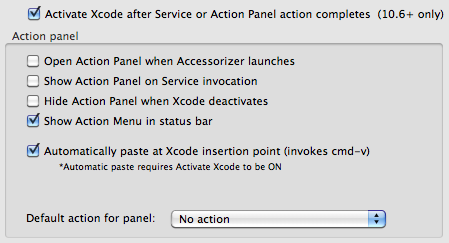
Action Menu settings

Within the "Coding Style" tab I mostly care about the "ivar Prefix" box and the "Formatting" box. The rest I can get to over time, as I surely will.

Idea: suppress automatic window.print()

You know how news sites often have a "print" version of each article? It's typically a slightly modified URL that brings up the whole article in a form suitable for printing — on a single page, usually without ads, and sometimes without images. I don't have an example handy but I often get such links in my RSS feeds.

I appreciate the nicer looking single page, but some of these sites automatically bring up the print dialog, presumably as a convenience to save me a click. I almost never want to see the print dialog, so I'd like to have a Safari extension that suppresses this behavior.

I'll have to look in my RSS archives later for an example that I can dissect. Offhand I'd guess they're doing something like onLoad="window.print();". Maybe I can write the Safari extension myself.

Great bookmarklet for searching the docs

[UPDATE: I should have posted the bookmarklets themselves for convenience. This one searches the Mac docs: Search Mac. This one searches the iOS docs: Search iOS. Drag these to your bookmarks bar. If you use Safari, you can use Command-(number) for quick access.]

Peter Hosey posted this tip for tweaking Chrome or OmniWeb to easily search the Apple documentation. In the comments, Erik provides a great bookmarklet for doing the same in any browser.

You might guess Peter is doing something obvious like Googling with site:developer.apple.com. But actually he uses Apple's own search, the same as if you went here or here and used the top right search field (not the one farther down). Apple revamped their online doc search a while back to return much nicer and more useful results, as you can see from this screen shot on Peter's article:

Previously I was using Sal Conigliaro's ADC Search Safari extension to perform this search. Sal mentioned ADC Search in response to my earlier post on finding sample code. It adds a search bar that does the same Apple search, and also displays convenient links to key points in the Apple documentation. I added a keyboard shortcut for the menu item that shows and hides the search bar, so it doesn't always have to take up space in the Safari window.

My only nitpick with ADC Search is that I have to click on the search field to give it keyboard focus. (I just sent Sal an email about this; I really should have done so earlier.) Conveniently, in comment #4 on Peter's article, Erik (with some tweaking from Peter) provides a bookmarklet that does not have this drawback because it brings up a search field that already has keyboard focus. Erik actually provides two bookmarklets, one for Mac and one for iOS. I've added them to the beginning of my Safari bookmarks bar and now I can get to them with Command-1 and Command-2.

As I'm typing this I discovered a nitpick with the bookmarklet, which is that if I hit Escape it doesn't cancel the search, but rather does a search for "null". I'm about to mention this in comments on Peter's article; I'm sure it's easy to fix. [UPDATE: Peter has fixed the bug in the bookmarklet. If you grabbed it before, go and grab it again. Also, note that if your search results look like one long list instead of four columns like in the screenshot above, you just need to select the column mode from the buttons on the left just above the search results.]

The "post" prefix

This headline by Paul Hontz has been making the rounds:

If iPads are “post-pc devices” why must I sync with iTunes before I can use one?

This is a reference to a term Steve Jobs used at two points during the iPad 2 announcement. Here's the gist of Hontz's complaint:

Steve said that the iPad was “a post-pc device”. As an iOS developer who makes his living building apps for iPads and iPhones, I disagree. You see iOS has this ball and chain attached to it called “iTunes” that runs on a typical PC.

Before I go on, let me be clear: I get that some people, maybe a lot of people, hate being chained to iTunes. Although my own gripes about iTunes are not as strongly felt, I can understand that others are very bothered by this.

That said, some people seem not to have listened to what Jobs actually said. Hontz and others are going way overboard in their interpretation of the "post" prefix. They're reading it as in "post-apocalyptic" when they should be reading it as in "post-Industrial". We may have an information-based economy, but we still use factories to build our computers.

Here's what Jobs said at 3:45:

Now, today we're here to talk about Apple's third post-PC blockbuster product. Right? That's how we think about these things. We started off in 2001 with the iPod, right, our first post-PC product, and we've been at it ever since. In 2007 we added the iPhone, and in 2010 we added the iPad. And every one of these has been a blockbuster. So we're in a position now where the majority of our revenues come from these post-PC products.

Jobs is acknowledging what many have been observing for years. The stars of Apple's product line are no longer PCs but iOS devices. Hence, "post-PC".

Mac developers fretted the first time WWDC was dominated by iPhone stuff rather than Mac stuff. Why? Because, although the term wasn't in use then, it was a sign that Apple was going "post-PC". Some people, especially after the introduction of the Mac App Store, fear that Macs are going to become "walled gardens" like the iPhone and iPad. Why on earth would anyone think this might happen? Because they know Apple has gone "post-PC".

At 1:08:35, Jobs says this about how post-PC devices are different from PCs:

It's in Apple's DNA that technology alone is not enough, that it's technology married with liberal arts, married with the humanities, that yields us the result that makes our heart sing. And nowhere is that more true than in these post-PC devices.

And a lot of folks in this tablet market are rushing in and they're looking at this as the next PC. The hardware and the software are done by different companies, and they're talking about speeds and feeds just like they did with PCs.

And our experience and every bone in our body says that that is not the right approach to this, that these are post-PC devices that need to be even easier to use than a PC, that need to be even more intuitive than a PC, and where the software and the hardware and the applications need to intertwine in an even more seamless way than they do on a PC.

In other words, tablets (really, iOS-type devices in general) have different criteria for success than PCs. The analysts and competitors trying to figure out the success of the iPad are still using pre-iOS reasoning, and Jobs is saying they have it wrong.

Whether you agree or not — whether you think all this is spin or marketing or whatever — these are the assertions Jobs made. He never said or implied anything that should lead anyone to think you don't need iTunes to use your iPad.

To recap:

Before: Apple was exclusively or primarily a PC company.
After: Apple's iOS devices have more revenue and mindshare than their PCs.

Before: PCs were judged on criteria like "speeds and feeds".
After: iOS devices are succeeding because of different criteria — integration and elegance.

(Note: You can download the video of the event by subscribing to the Apple Keynote podcast.)

Reactions to the iPad 2 announcement

I just saw the iPad 2 announcement via the "Apple Keynotes" podcast feed in iTunes.

General reactions:

  • Great to see Steve.
  • The speed and cameras on the iPad 2 make it tempting. I suspect the thinness and the tapered edge will make it feel even lighter than it is.
  • In the Apple tradition, they announced a product that's actually scheduled to ship. Soon.
  • I'm not sold on the Smart Cover, but I'll withhold final judgment until I fiddle with one.
  • Best part of the iPad promotional video: the mother of the autistic boy. (I mean the general iPad video Steve showed at the beginning, not the one near the end about the iPad 2.)
  • The Photo Booth demo was kind of painful. I've never heard of anyone having "hours" of fun with Photo Booth.
  • Curious whether we'll be seeing more of Michael Tchao (Vice President, iPad Product Marketing).

To me, the GarageBand demo came pretty close to stealing the show from the iPad 2. It was the best showcase ever for the technologies available on the platform. I can't wait to play with it.

About apps like iMovie and GarageBand, Steve said this:

We like to do applications because it gives us feedback, you know, for what it's like to be an app developer so we can make the system better and better and better for all developers. But also, it can set the bar. It gives third-party developers something to say "Wow, if Apple can do that, I can certainly do better!"

I think it challenges not only iOS developers, but also developers on other platforms.